Setup Guide
Unboxing, placing the dock, the first full charge and getting your home ready for a smooth first run.


Clear, model-aware guidance for getting a robot vacuum unboxed, connected to Wi-Fi, back on track when something goes wrong, and running well for the long haul.
Robot vacuums are simple to live with once they are set up, but the first few days can be confusing. Apps ask for permissions you may not expect, Wi-Fi pairing can stall at 90%, and an unfamiliar beep can leave you wondering whether something is broken.
iRoomBaseTP collects the questions owners ask most often and answers them in plain English. Our guides explain why each step matters, so you can adapt the advice to the brand and model you actually own instead of following a script that only fits one device.
We are an independent resource. We don’t sell robots, we don’t run a repair service and we are not connected to any manufacturer — which means our only job is to make the information useful.
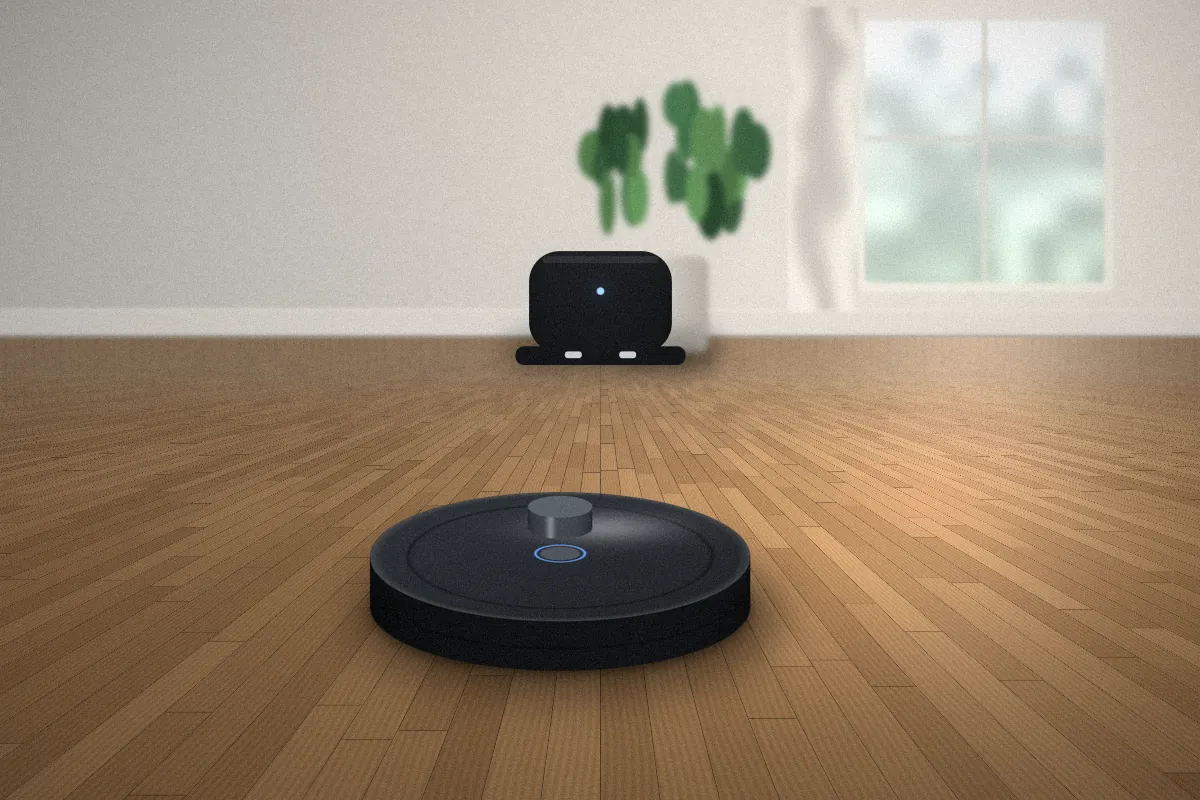
Each guide stands on its own, but they also follow the natural order of owning a robot vacuum — from the box to the first scheduled clean.
Unboxing, placing the dock, the first full charge and getting your home ready for a smooth first run.
Network requirements, band compatibility, pairing through the companion app and what to do when it fails.
Finding the official app, creating an account safely, permissions, schedules, maps and notifications.
Organized by symptom: not starting, not charging, getting lost, stopping early or losing suction.
When a simple restart is enough, what a factory reset erases, and how to reconnect afterwards.
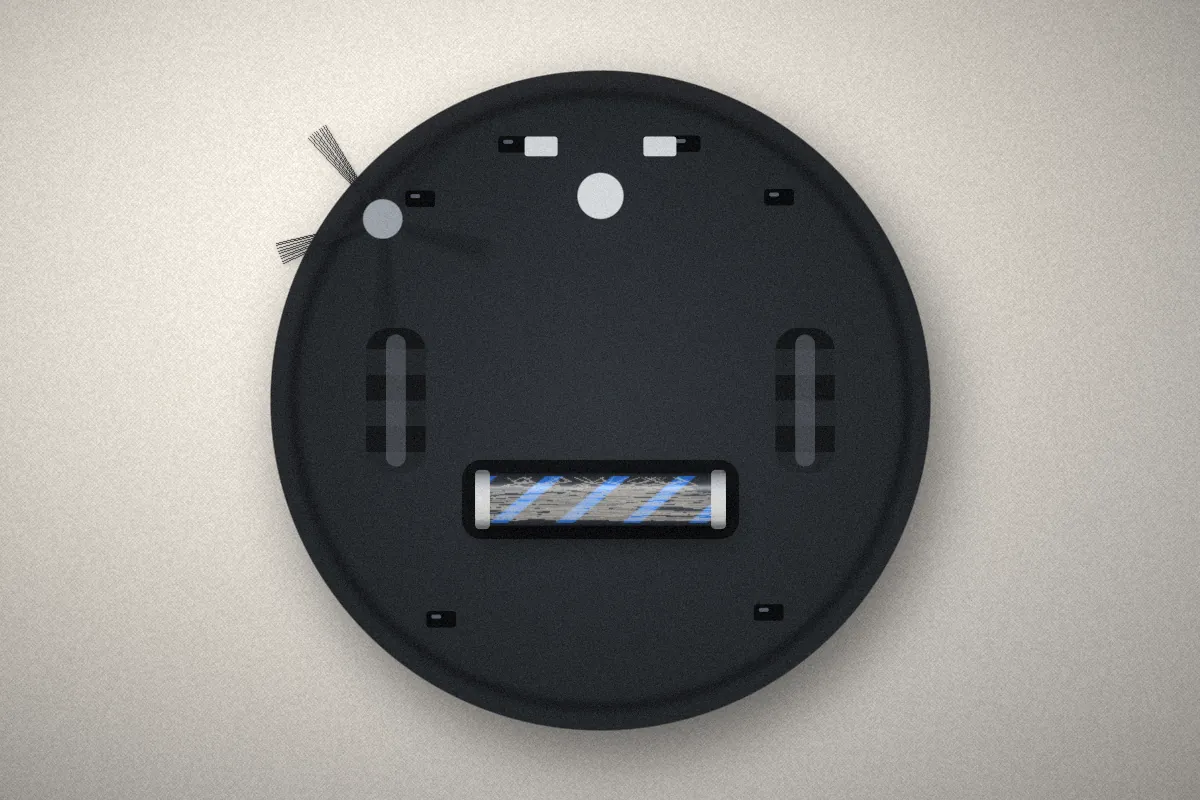
Routine care for the bin, brushes, filter, sensors, wheels and charging contacts, with a schedule.
Most problems fall into a handful of patterns. Start with the one that sounds like yours — the full walkthrough lives on the troubleshooting page.
| Symptom | Often caused by | First thing to check |
|---|---|---|
| Won’t pair with the app | Phone on a different network band, VPN or private DNS active, router security mode, app permissions | Stand near the router, turn off VPN, confirm the network your model supports |
| Doesn’t return to the dock | Dock moved, cluttered dock area, dirty sensors, dock unplugged | Clear the space around the dock and check its power light |
| Stops mid-clean | Low battery, tangled brush, full bin, wheel snag, cliff sensor reading dark rugs | Look at the brush and wheels, then empty the bin |
| Weak suction | Full bin, clogged filter, hair-wrapped roller, blocked intake | Empty the bin and tap out the filter |
| Gets stuck or lost | Loose cords, low furniture, thick rug fringe, smudged sensors, a moved map | Tidy cables and wipe the sensors with a dry cloth |
Before searching for an error code, run through this quick sequence. It is safe on any model and clears up many everyday faults.
Note any light color, pattern or spoken message. Write it down — it is the most useful clue you have.
Remove hair from the main brush and side brush, check that both drive wheels turn freely and empty the bin.
Make sure the dock is plugged in, its indicator is on and the metal charging contacts are clean and dry.
Use your model’s normal restart method from the manual. A restart keeps your maps and Wi-Fi settings.
Start a spot clean in the middle of a room. If the issue repeats, move on to the matching guide.
Empty the dustbin before it reaches the fill line so airflow stays strong.
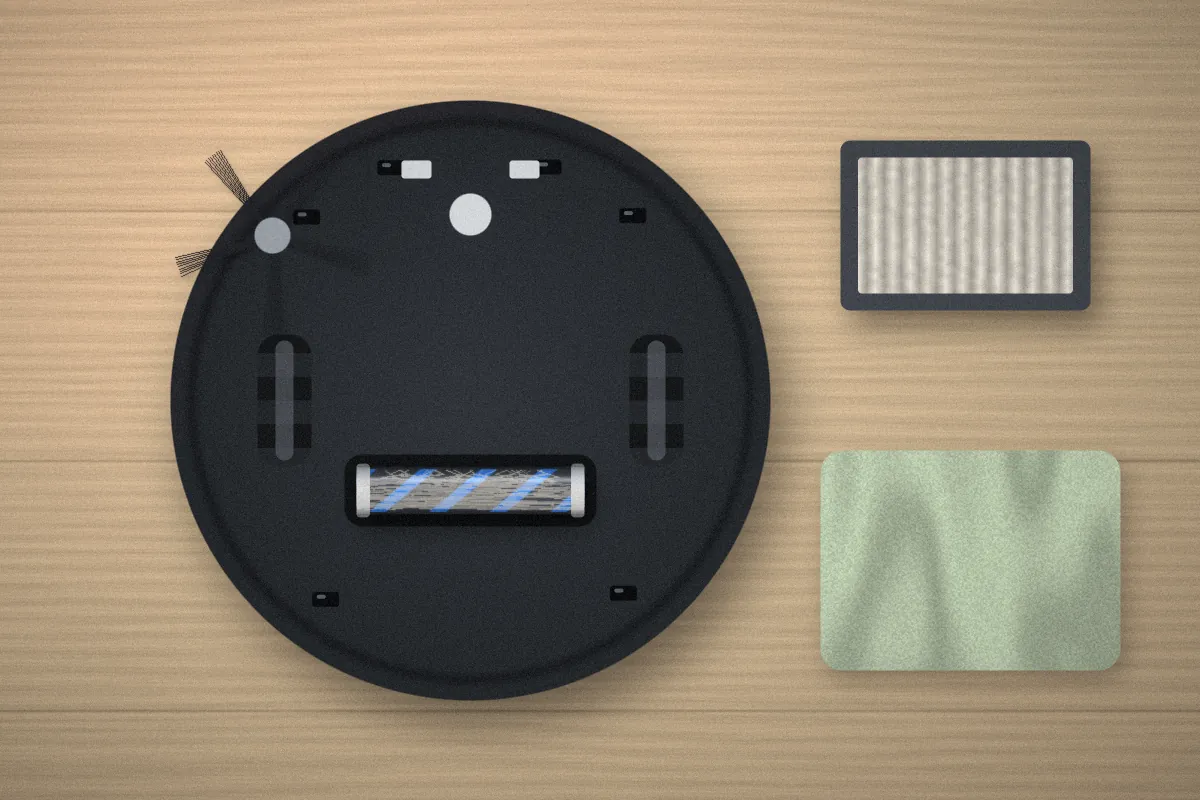
Pull hair off the main roller and side brush, then tap dust out of the filter.
Wipe cliff, wall and camera sensors with a clean, dry microfiber cloth.
Dust the charging contacts on the robot and dock to keep charging reliable.
Band support, router settings and phone settings that quietly block pairing.
Why a robot can sit on its dock and still not charge — and the checks that fix it.
Room prep, sensor care and map habits that reduce stuck and missed spots.
No. iRoomBaseTP is an independent help resource and is not affiliated with any manufacturer. For warranty claims, account problems or repairs, contact the support channel listed in your product’s manual or packaging.
The principles apply to most robot vacuums, but buttons, light patterns, app menus and reset methods differ between brands and even between models from the same brand. Use our guides to understand what you are doing, and your official manual for the exact steps.
Not all of them. Many models connect only to 2.4 GHz networks, while some newer models also support 5 GHz. Check the specifications for your model before changing router settings. The Wi-Fi guide explains how to work with either.
Usually not as a first step. A restart solves many glitches and keeps your maps and settings. A factory reset can erase saved maps, schedules and network details. The reset guide covers when each one makes sense.
A weekly check works well for most homes, and more often if you have pets or long hair in the household. Replacement intervals depend on the manufacturer’s recommendation for your model.
Browse the help article library, or tell us which guide was unclear and we will work on making it better.